Holiday Swap: move a company holiday to a date that works for you

Every office has one list of holidays, and it applies to everyone. In a team that spans countries and faiths, that list is always wrong for someone: they get a day off they do not observe and work through the one they do.
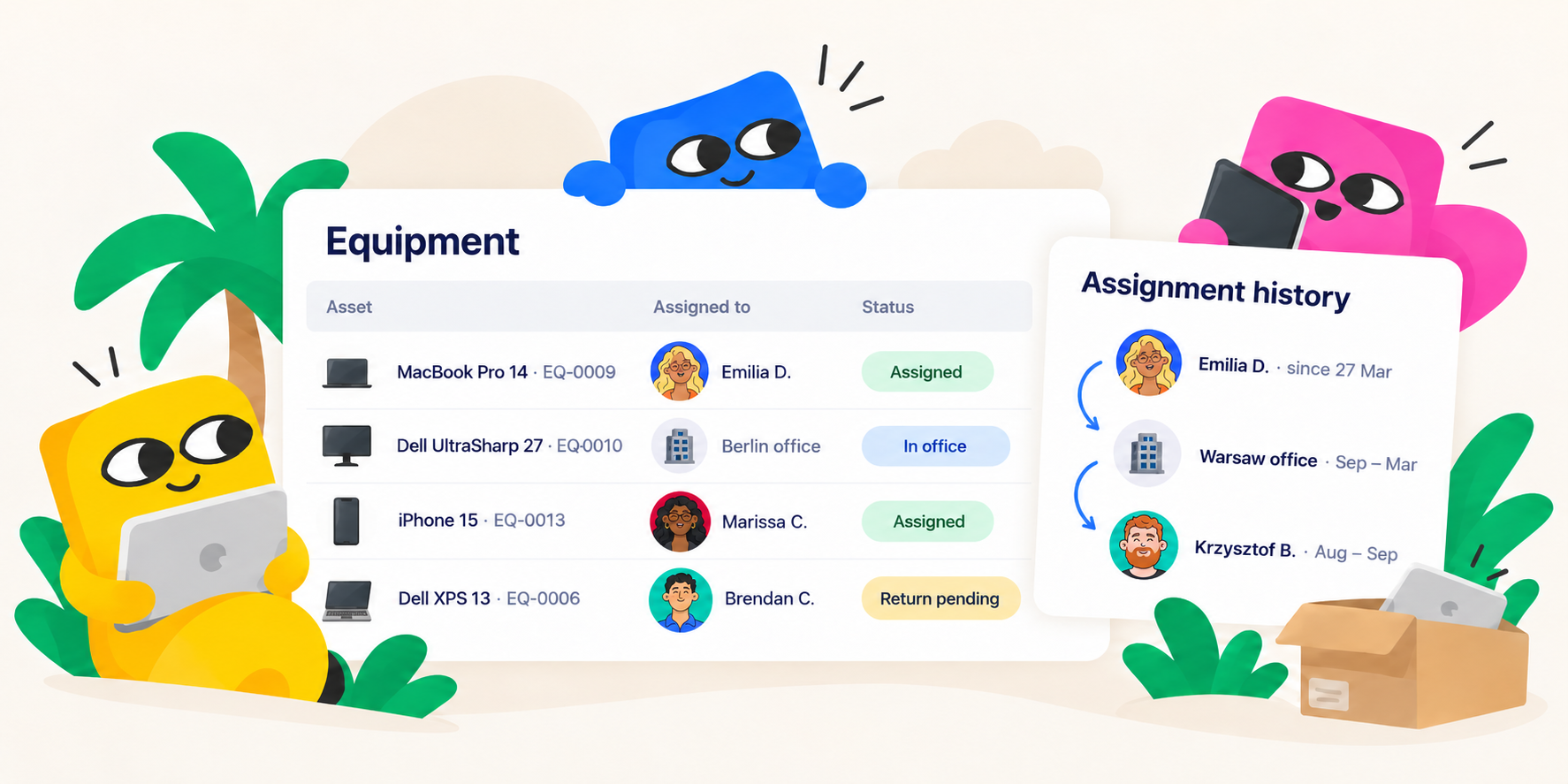
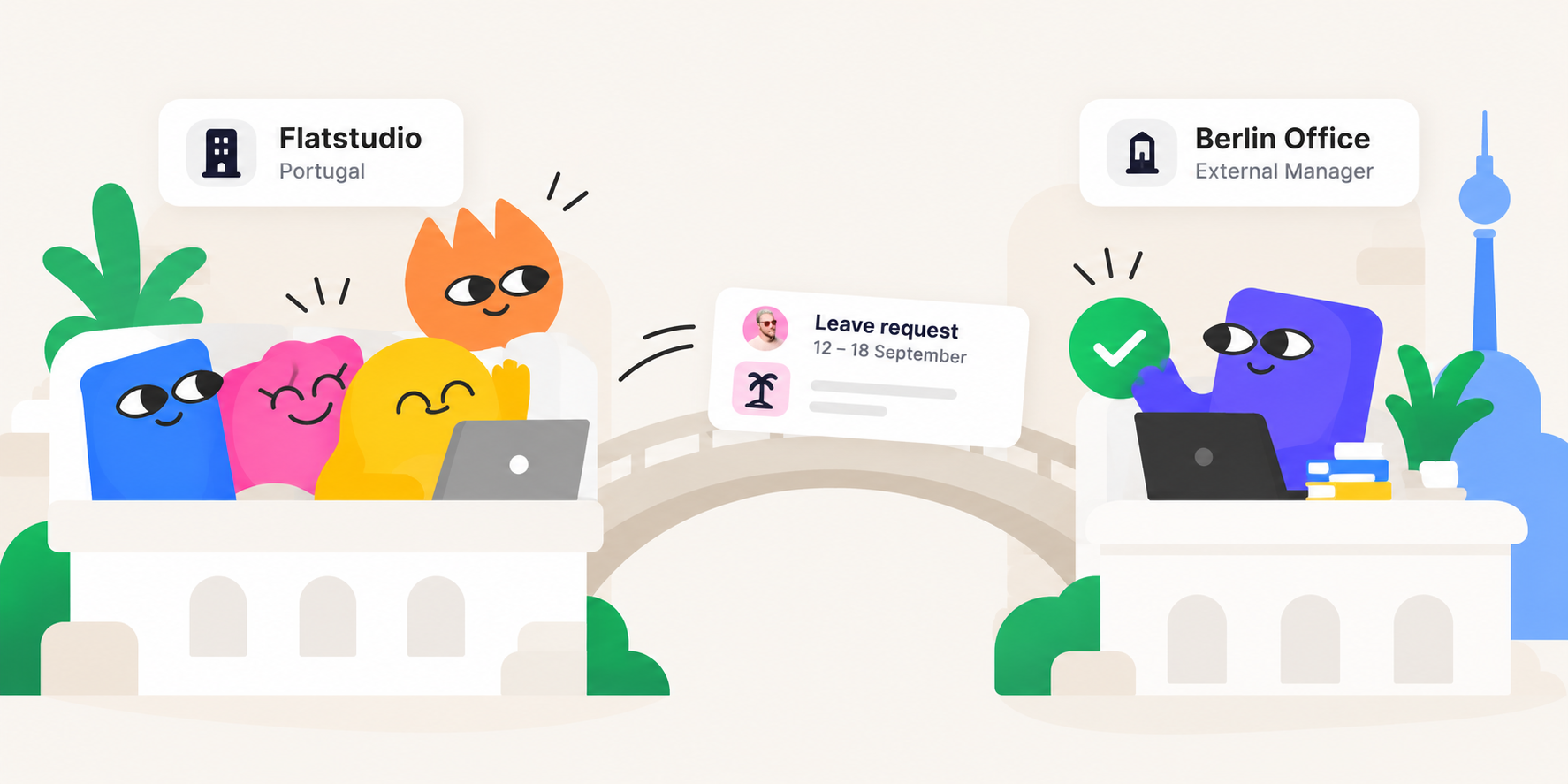
Holiday Swap lets an employee move a company holiday to another date. The original date becomes a working day for them, the new date becomes a paid day off, and nobody else's calendar changes.
What is Holiday Swap?
Holiday Swap is an optional leave type in Teamtopia office policies. An employee picks a company holiday and a replacement date, the request goes through approval, and after that:
- the original holiday is a normal working day for that employee, while the office keeps it for everyone else;
- the replacement date is a paid day off for them.
A swap never touches leave balances. Nothing is accrued or deducted from vacation or sick leave; the only thing counted is the number of swaps per year. If the employee already had another absence on the new date, the swap takes priority and that day is not deducted. Payroll, statistics and the public API all count the day where it now stands.
Why do teams need a holiday swap policy?
Teams need a holiday swap policy because a shared holiday calendar ignores individual dates that matter, and the usual workaround costs employees a vacation day.
The same three cases come up in every distributed team:
- Religion. An employee who celebrates Orthodox Easter gets Catholic Easter Monday off and works on their own holiday.
- Nationality. A Ukrainian working in a Portuguese office gets Portuguese public holidays and none of the Ukrainian ones.
- Personal plans. A holiday on a random Tuesday is worth more on a week with a family trip.
Without a policy, these end up as verbal agreements with a manager or a spreadsheet nobody else sees. With it, the exchange has clear rules, an approval trail and a place on the team calendar.
How does Holiday Swap work?
The company sets four rules in the office policy:
Every change creates a new policy version with an effective-from date. Employees see the rules as plain sentences in the request form, for example "You can move up to 2 holiday(s) per year."
To request a swap, the employee opens Add Request, then Holiday swap, and picks a new date for each holiday. The date picker only allows valid dates: anything outside the window, non-working days, other holidays and already chosen dates are disabled. Several holidays can go in one request, and each is approved or declined separately.
Where does the team see a swap?
A swap shows on both dates, so colleagues see real availability:
- Team calendar. On the official holiday: "Observed by 12 employees / Swapped by 3 employees", with names and new dates. On the new date, the employee is shown as away on a swapped holiday.
- Google Calendar. Optional "Holiday swaps" checkbox per synced calendar, off by default.
- Slack. A separate notification group for submitted, approved, declined and cancelled swaps. More in the Slack integration article.
What happens when the rules change?
Approved swaps stay safe when the policy changes. Unticking a holiday or lowering the yearly limit only affects new requests.
Removing a holiday from the office calendar is the one exception: swaps attached to it are cancelled, and the employee gets an email and a Slack message that the date is a working day again.
How to turn on Holiday Swap
Open the office policy, enable Holiday Swap under additional leave types, tick the holidays that can move, set the window, the limit and approval. Employees see the Holiday swap tab once at least one holiday is marked swappable.
For teams across several countries, pair it with separate offices per country, as described in one policy per country.
Authors
Article FAQ
Questions about this article
We're here to help you
info@teamtopia.ioA holiday swap policy is a set of rules that lets an employee exchange a company holiday for another date. The original holiday becomes a working day for that employee and the new date becomes a paid day off. The company defines which holidays are eligible, the date window, a yearly limit and approval.
A floating holiday is an extra paid day the employee places anywhere in the year. A holiday swap adds no days; it moves an existing company holiday to a different date for one person. Total paid time off stays the same, so a swap does not draw on any leave balance.
Yes, if the company marks that public holiday as swappable. The employee picks the religious holiday as the new date within the allowed window, and the request follows the normal approval flow. Colleagues see the change on the team calendar on both the original and the new date.
The moved day counts as a paid day off on its new date and as a regular working day on the original date. In Teamtopia, payroll and the public API read holidays from the same source as the calendar, so pay is calculated for each day as it stands after the swap.
If a company deletes a holiday from the office calendar, every approved swap attached to it is cancelled. The employee receives an email and a Slack message saying the replacement date is a working day again. Ordinary policy edits keep existing approved swaps in place and apply to new requests only.