Introducing Company Equipment in Teamtopia

Your company has 40 employees, two offices, and a Google Sheet that supposedly tracks all the laptops and monitors. One row says “MacBook + monitor.” Another has an employee’s name but no equipment details. Someone left three months ago, and nobody remembers whether they returned their laptop.
Sound familiar?
Spreadsheets work when a team is small. But as people join, change offices, receive new equipment, and eventually leave, keeping those records accurate becomes another task for HR. We built Company Equipment in Teamtopia to give your team a clear record of every asset, who holds it, and where it’s been — all connected to the employee profiles you already manage.
One place for every laptop, monitor, and phone
Company Equipment starts with a simple idea: every piece of company equipment deserves its own record.
Instead of writing “laptop + other” next to someone’s name, you can now register each device individually. A MacBook Pro, an external monitor, a company phone — each gets an automatically generated asset tag, such as EQ-0001 or EQ-0002.
You can add the equipment’s name, model, serial number, category, and notes. Categories are entirely up to your company. Choose an existing one or type a new category while adding an asset.
Everything appears in a single equipment register, with search and filters for office, category, status, and employee.
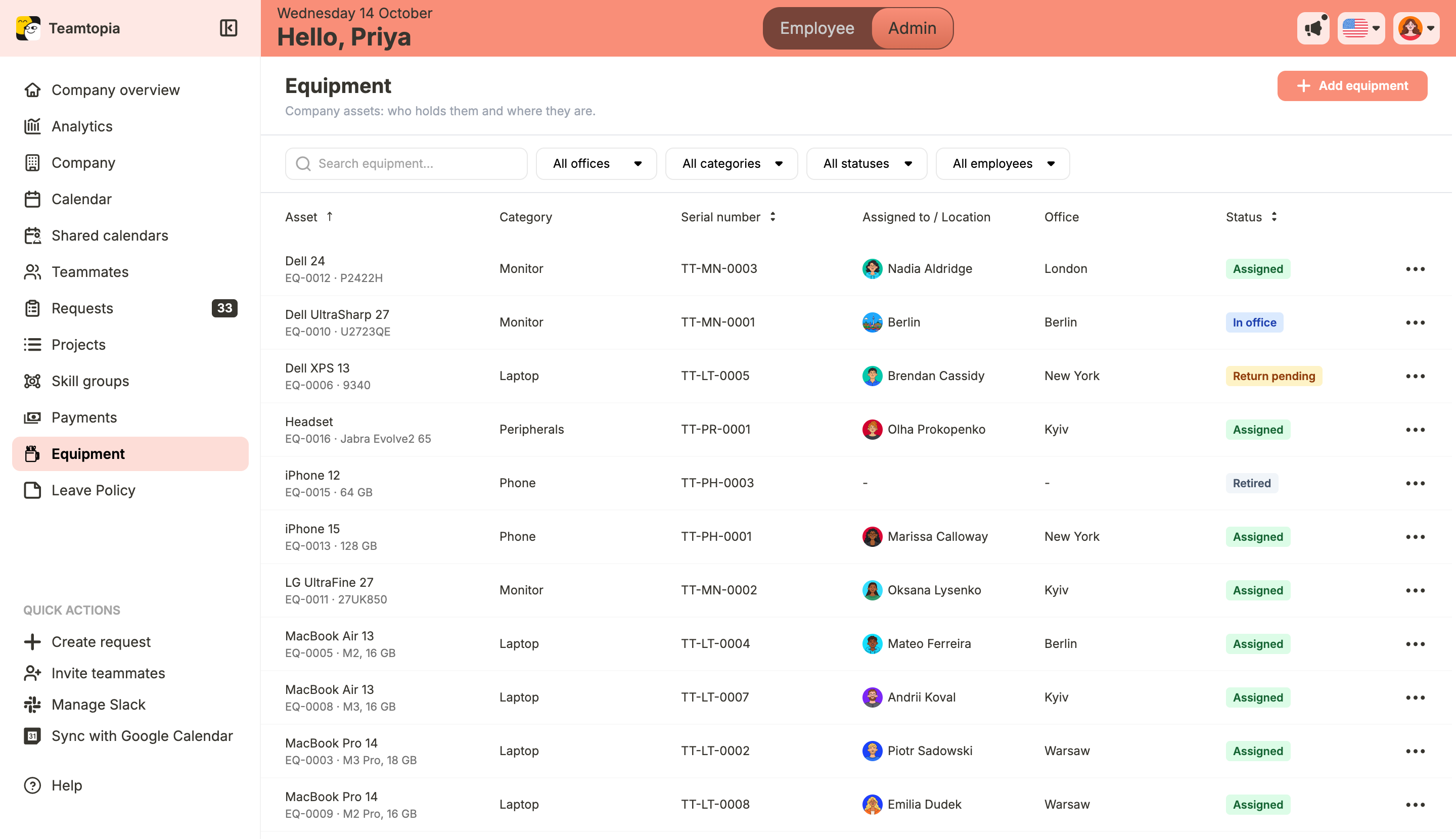
Need to see all monitors associated with your Lisbon office? Filter by office and category. Looking for a particular laptop? Search for it in the register.
There’s also a clear rule: every asset is held by either one employee or one office, never both. Equipment can only be assigned to active employees. This makes it easy to tell a laptop someone is using from a monitor currently held by an office.
Every transfer has a history
Equipment rarely stays with the same person forever.
A designer gets a new laptop. Their previous MacBook goes to a colleague. A monitor moves from the Berlin office to the Lisbon office. Without a proper record, the previous assignment usually disappears when someone edits the spreadsheet.
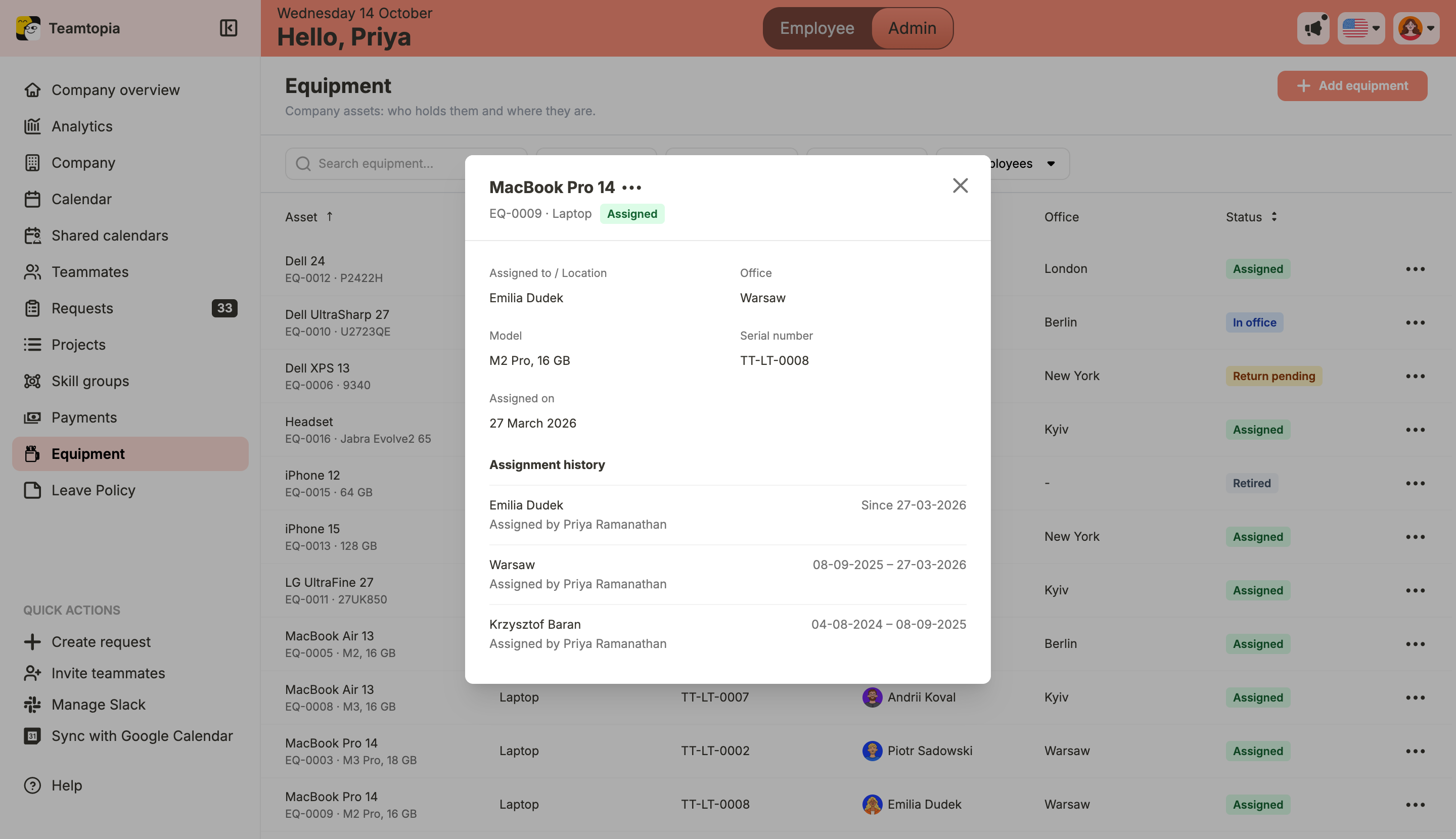
In Teamtopia, you can Transfer an asset to another active employee or move it to an office. You choose the transfer date, and the change becomes part of the asset’s Assignment history.
That history shows who held the equipment, the start and end dates of each assignment, and who made it. You don’t have to reconstruct the past from old spreadsheet versions or messages between colleagues.
Each asset also has one of five statuses:
| Status | Meaning |
|---|---|
| Assigned | Held by an employee |
| In office | Held by an office |
| Return pending | Awaiting return |
| Lost | Reported missing |
| Retired | Taken out of use |
These statuses help distinguish equipment that’s actively assigned from items that need attention or are no longer in use.
And they aren’t necessarily permanent. If a laptop marked Lost turns up, or a retired monitor is needed again, you can bring it back into use with Transfer. The previous Assignment history stays intact.
We also made a distinction between Retire and Delete. Retiring equipment preserves its history. Deleting a record is intended only for mistakes or duplicates, not for equipment that has simply reached the end of its useful life.
Equipment is now part of the employee profile
When you open an employee profile in Teamtopia, you already have their people information in one place. We’ve added a Company equipment section so that assigned equipment is part of that picture.
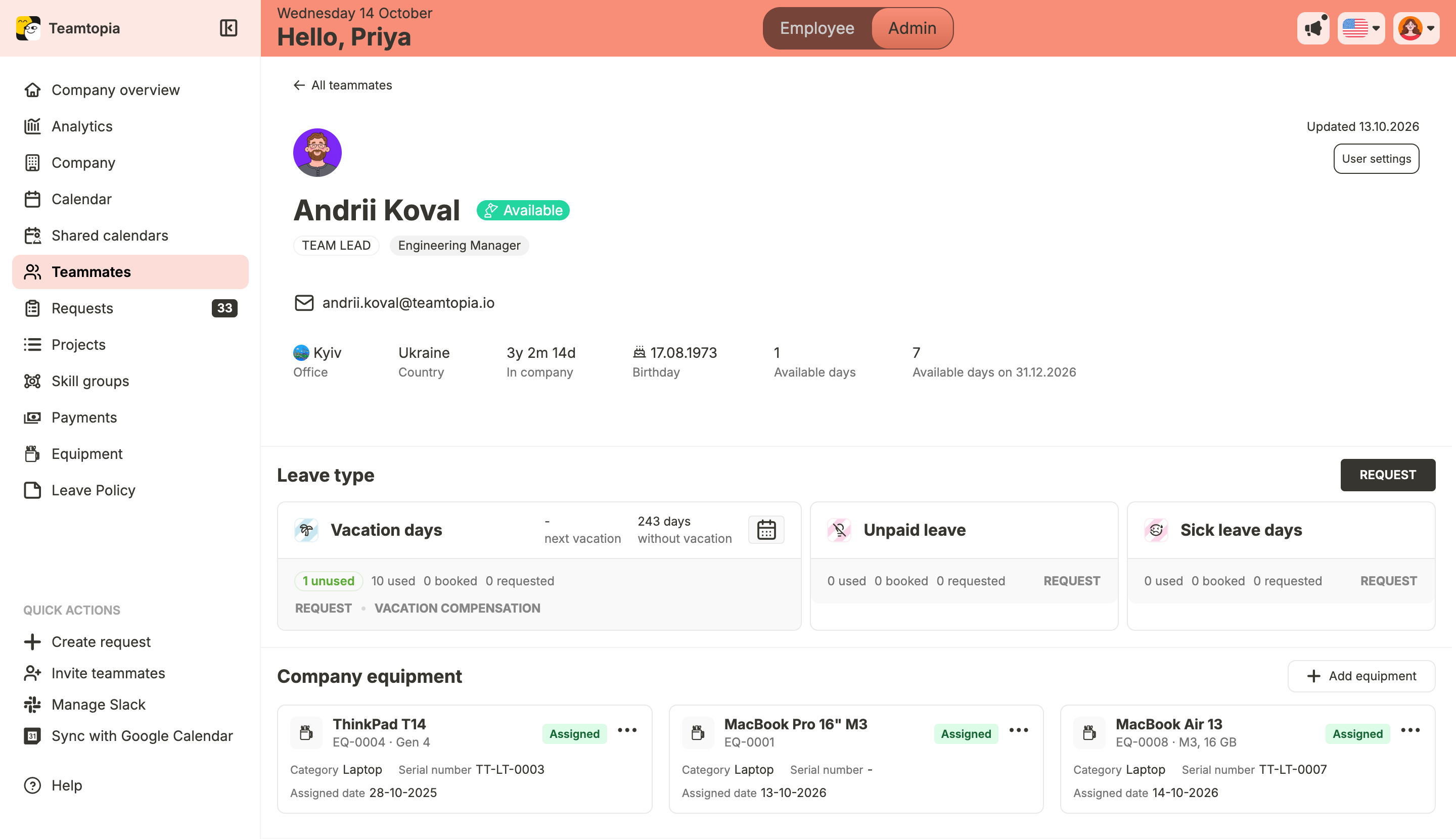
An HR manager checking a new employee’s profile can see which devices are assigned to them. An office manager reviewing assignments doesn’t need to cross-reference a separate spreadsheet with the employee directory.
Employees can see their own equipment, too. Their view is read-only, so they can check what’s assigned to them without changing the records.
This is especially helpful when your team works across different offices. Equipment information stays connected to the employee, rather than being buried in a location-specific document that not everyone knows about.
“A laptop shouldn’t disappear from your records just because the person using it leaves the company.”
Iurii Budnikov, Engineer at Push
Offboarding now includes an equipment check
Imagine a designer leaving your Lisbon office. They have a company MacBook and an external monitor. Their last working day is approaching, and HR is ready to deactivate their profile.
But what happens to the equipment?
Previously, that depended on someone remembering to open a spreadsheet, find the employee, and check what needed to be returned. Now, when you deactivate an employee who still holds equipment, Teamtopia shows a Company equipment assigned alert.
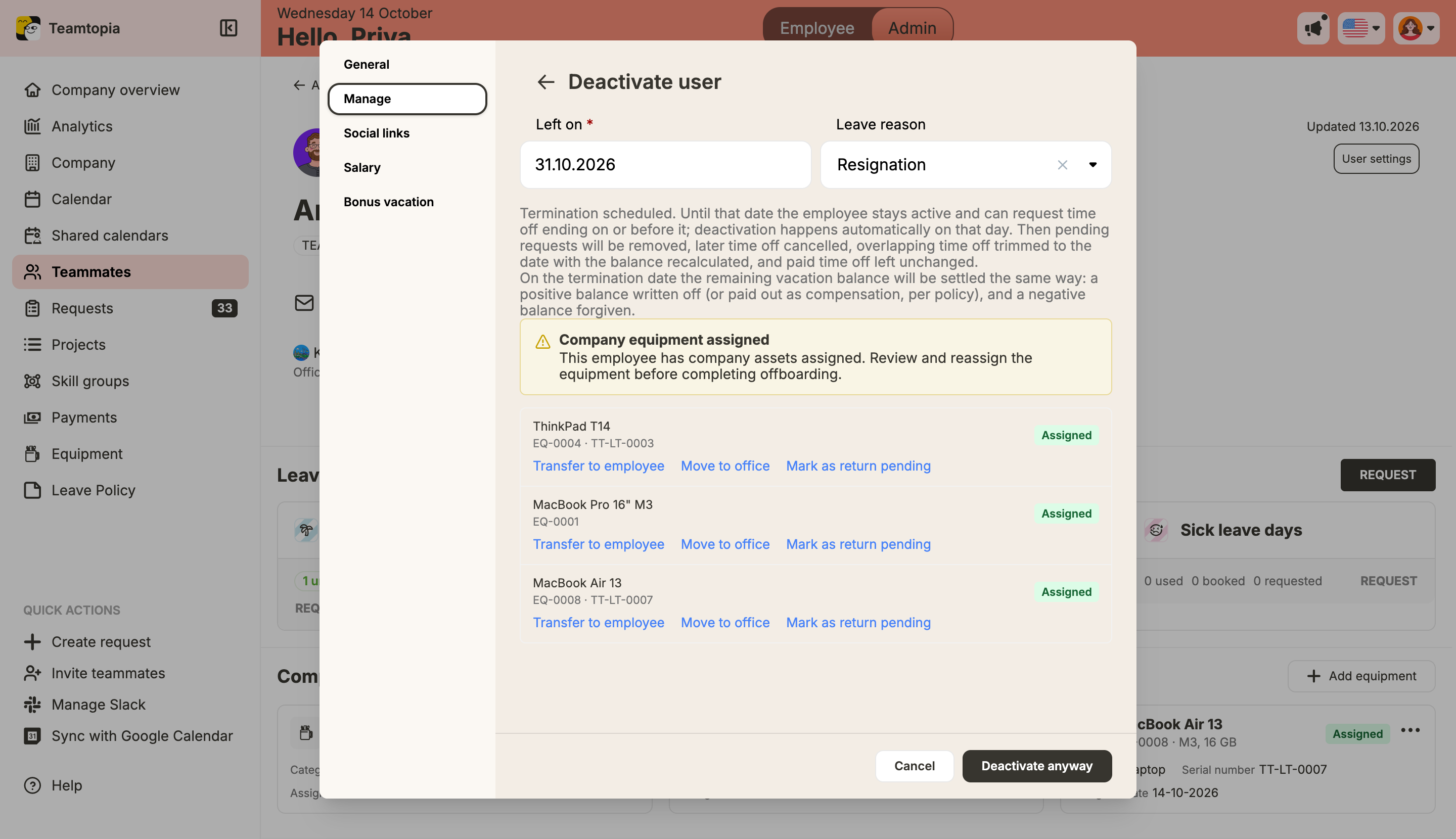
The alert lists the employee’s equipment and gives you three quick actions for each item:
- Transfer to employee — assign the item to another active colleague.
- Move to office — move the equipment to an office.
- Mark as return pending — record that the item still needs to be returned.
Not everything has to be resolved before the employee leaves. If the laptop hasn’t been returned yet, mark it Return pending — items in that status don’t block offboarding. You can also select Deactivate anyway if you need to proceed without handling the equipment at that moment.
The point isn’t to add another approval step to offboarding. It’s to make sure HR sees the outstanding equipment before completing the process. A small reminder at the right moment can prevent a much longer search later.
The right people get the right access
Equipment management often involves several people. HR handles departures, office managers coordinate devices between locations, and operations teams maintain the records. Not everyone needs the same level of access.
Company Equipment uses Teamtopia’s existing roles system, with separate permissions to view, create, update, and delete equipment. You manage them through the roles your company already uses — no separate permission system.
We’ve also accounted for equipment when managing offices. If an office still holds equipment, Teamtopia won’t let you delete that office until those items are moved elsewhere. Equipment always stays connected to a valid holder, even when your company reorganizes its locations.
Spreadsheet vs. Teamtopia Equipment
Here’s what changes when equipment records become part of your HR workspace:
| Spreadsheet | Teamtopia Equipment |
|---|---|
| One row per person, often with vague descriptions | Individual records with automatic asset tags |
| Previous assignments can be overwritten | Assignment history with holders, dates, and assigners |
| Office information maintained manually | Office assignments and filters |
| Equipment stored separately from employee records | Equipment visible in employee profiles |
| Someone must remember to check devices during offboarding | Equipment alert when deactivating an employee |
| Access controlled through spreadsheet sharing | Role-based view, create, update, and delete permissions |
Get started in 3 steps
- Add your equipment. Open Equipment and create a record for each item: name, model, serial number, category, and any useful notes. Teamtopia generates the asset tag automatically. There is no spreadsheet import at the moment, so existing equipment is added manually.
- Assign each asset. Choose the active employee or office that currently holds it. Each asset has one holder, so there’s no ambiguity about where it is.
- Record changes as they happen. When someone receives a different laptop, equipment moves to another office, or someone leaves, use Transfer or the matching status to keep the record accurate.
The more consistently your team records these changes, the more useful the Assignment history becomes.
One less spreadsheet to maintain
Company Equipment isn’t about introducing a complicated inventory process. It’s about making an everyday HR responsibility easier to manage: what equipment your company has, who holds each item, how assignments have changed, and what still needs attention when someone leaves.
And because it lives alongside employee profiles, leave management, and the rest of Teamtopia, equipment is no longer disconnected from the people using it.
Company Equipment is available in Teamtopia now. Open your workspace and start building your equipment register.
Authors
Article FAQ
Questions about this article
We're here to help you
info@teamtopia.ioYes. All equipment appears in one register, with filters by office, category, status, and employee. Each asset is held by either one employee or one office at a time.
Employees can see their own equipment in the Company equipment section of their profile. This view is read-only, so they cannot edit the records.
Teamtopia shows a Company equipment assigned alert during deactivation. You can transfer items to another employee, move them to an office, mark them Return pending, or choose Deactivate anyway. Return pending items don’t block offboarding.
Not currently. Equipment is added manually, and each asset receives an automatically generated asset tag when created.
Yes. Use Transfer to bring the equipment back into use. Its previous Assignment history is preserved.